
Most kitchen planner comparisons focus on tools that fall short of professional needs. Here, we break down features across three tiers of 3D kitchen design, from basic planners to full-scale 3D kitchen visualization platforms, to help you choose.
Inside this article:
- Basic customer-facing kitchen designer app features
- Advanced customer-facing kitchen designer features
- Retailer-specific kitchen designer features
- How to choose the right kitchen designer app
- Downloadable 3D kitchen planner feature framework and checklist
- A convenient 3D kitchen planner option for retailers
Article summary:
3D kitchen designer apps fall into three tiers, from simple customer planners to full retail-grade platforms, and the right choice depends on who will use the tool and how much workflow support you need. Core functions include drawing floor plans, placing cabinets and appliances with accurate measurements, swapping finishes, viewing the design in 3D, and generating a bill of materials. Enhanced options add browser-based access, lead-capture tools, inspiration rooms, floor plan tracing, room scanning, live 3D editing, and estimate exports. Retail platforms then require catalog swapping, fast HD renders, presentation packs, editable BOMs, and analytics.
Basic customer-facing kitchen designer app features
These features make up the core of any functional 3D kitchen planner. You’ll find them in nearly every tool on the market, from free browser-based options to enterprise platforms. They handle floor plan creation, product placement, and visualization, and they set the stage for everything in the next two sections.
The 3D Cloud Kitchen & Bath Project Planning Trends Study for 2025 shared that 74% of homeowners are more likely to complete their project with a retailer that offers 3D planning tools, and 80% say planning tools reduce remodeling stress. For retailers, those numbers translate directly to conversion opportunities.
Here are the basic customer-facing kitchen design app features:
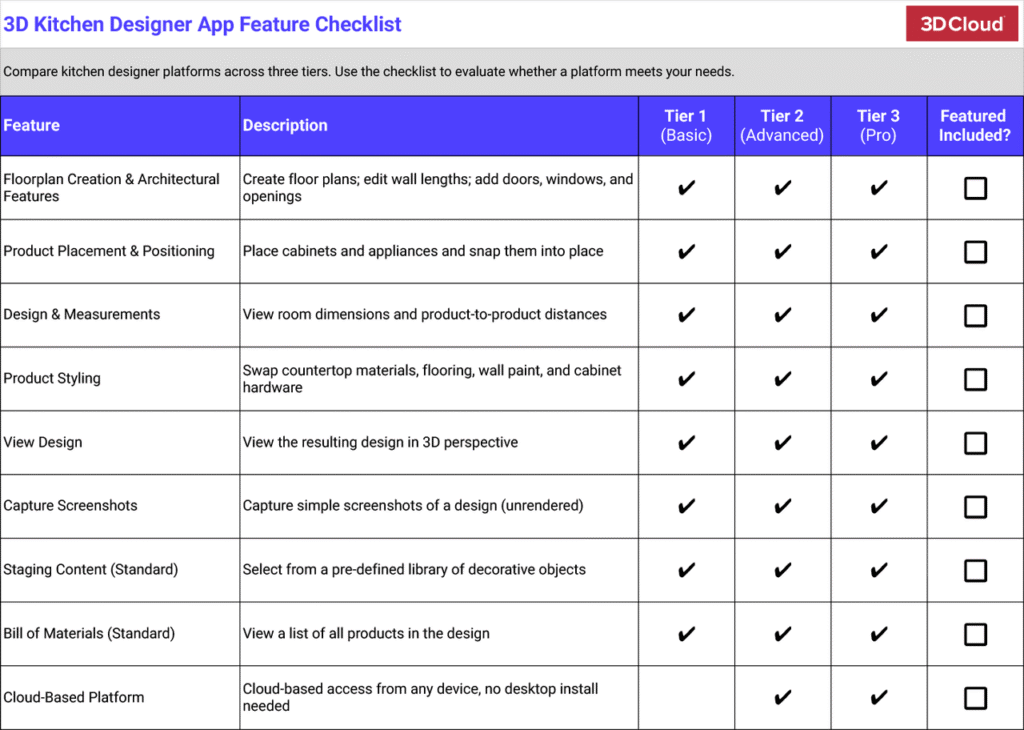
- Floorplan creation and architectural features: Create your floor plan. Edit wall lengths. Add doors, windows, and openings to build a space.
- Product placement and positioning: Place cabinets and appliances, and easily snap them into place.
- Design and measurements: View room dimensions and product-to-product distances in 3D views.
- Product styling: Swap countertop materials, flooring, wall paint, and cabinet hardware to see results in 3D instantly.
- View design: See and navigate the resulting design in 3D perspective.
- Capture screenshots: Capture simple screenshots of a design (unrendered).
- Staging content (standard): Select from a pre-defined library of decorative objects. Most planners include a handful of generic items.
- Bill of materials (standard): View a list of all products in the design.

Beck Besecker, 3D Cloud’s CEO and Co-Founder
“This is exactly what 3D Cloud was built for—bringing simplicity to the sale of customizable, complex products.”
– Beck Besecker, CEO and Co-Founder of 3D Cloud
Advanced customer-facing kitchen designer features
Some kitchen designer features enable customers to go beyond the basics. For example, the room scan feature, floor plan trace, and enhanced room drawing help customers with a DIY mindset jumpstart the design process independently. Other features, such as keyboard shortcuts, automated exports, and rapid placement, help maximize efficiency.
According to the 3D Cloud Kitchen & Bath Trends Study 2025, over half of home remodelers used a 3D planner when preparing their project. Among them, 46% used a 3D room planner through an online self-service platform offered by a retailer. Remodelers who used these tools credited them with helping them visualize the result, test layouts, refine their choices, and make more confident final decisions before ordering.
Here’s a look at advanced customer-facing kitchen designer features:
- Cloud-based platform: A fully cloud-based kitchen planner runs in the browser on any device. No install, no local files, no version conflicts between a designer’s workstation and a client’s laptop. Catalog data stays current because it’s pulled live, and projects pick up wherever the user left off. Desktop-installed tools like 2020 Design and 2020 Fusion don’t work this way.
- Lead generation apps: Some platforms include lead generation tools that sit in front of the planner itself, catching customers at the browsing stage and guiding them toward a design session. Style quizzes, budget estimators, and product visualizers each take 5 to 15 minutes and produce a qualified lead before the customer ever touches the full planner. Most kitchen design software skips this step entirely.These tools are even more effective when offered together in one central planning hub, like the Lowe’s kitchen planner:
- Style quiz: Select images, colors, textures, and preferences to build a mood board and style profile. (Quiz example)
- Estimator: Choose layout, dimensions, quality, and surfaces to build a preliminary budget range. (Estimator example)
- Visualizer: Interact with a kitchen scene to explore different product and finish combinations. (Visualizer example).

Natalia Gesiorski, 3D Cloud’s Head of Training and Design Strategy
“The customer being well-equipped before the actual meeting can eliminate the need for a meeting altogether. The discovery is done because the customer did it on their own already.”
– Natalia Gesiorski, Head of Training & Design at 3D Cloud
- 3D perspective view (enhanced): In many kitchen planners, the 3D view lives in a separate window. Make a change in the 2D layout, switch to the other window, and wait for it to update. A single-screen workspace with live zoom, pan, and rotation that reflects every edit as it happens removes that friction.
- Inspiration rooms: Generic gallery images give customers a starting point but offer little else. Pre-built, fully functional rooms that load a complete design from a selected image let customers start personalizing right away, rather than building from a blank canvas. When those rooms feature a retailer’s own products and imagery, they serve as both design features and marketing tools.
- Enhanced room drawing: Look for standout features, such as those listed below. These improve efficiency for users seeking a more configurable experience.
- Continuous drawing mode or other wall drawing options
- Automatic interior room dimensions
- Angle snapping
- Auto-enclose room
- Double-click to start drawing
- Edit walls in 3D view
- Global wall height controls to change all wall heights in one place
- Floor plan trace: Most kitchen planners expect users to draw every wall manually. A trace feature lets users upload a photo or screenshot of an existing floor plan and build directly on top of it, cutting setup time and reducing layout errors. This isn’t standard in most tools on the market.
- Room scan feature (iOS only): Instead of measuring a room by hand, users can use their phone or tablet with the room scanner to automatically capture the layout. The generated floor plan uploads straight into the planner with no manual drawing.
- Keyboard shortcuts: Point-and-click is the default in consumer-facing kitchen planners. Design-specific hotkeys for switching views, placing products, and navigating the workspace open up a faster way to work for users who prefer it. Standard shortcuts like undo and copy are included alongside workflow accelerators specifically built for kitchen design.
- Automated customer estimate export: Product data, quantities, and pricing are pulled directly from the design into a customer-ready estimate, without extra work copying between screens or adjusting formatting. A few clicks and the estimate is done, consistent across designers, and ready to send. In most planners, designers still compile this by hand.
- Staging content (custom): A library of decor and staging objects, from bar stools and pendant lights to plants and countertop accessories, helps designs feel lived-in instead of empty. The ability for a retailer to curate their own on-brand staging content, choosing what shows up and how it looks, is far less common.
- Design from photo: Customers can easily incorporate elements they’d like to see in their own space by dragging and dropping them directly into their 3D planner project from images of real-world designs.
- Rapid placement: Automatically place a cabinet next to the previous one.
- Product snapping usability: Enhanced product snapping and rapid unit placement allow the user to set cabinets with minimal clicks, quickly.
- Multi-select to edit at scale: Multi-select (product or legend) in-scene to edit at scale.
- Global room styling features: Swap all cabinet colors or set different colors for upper and lower cabinets.
- Standard bill of materials: A document listing all products in the design with SKUs and quantities. Formatting and style are pre-customized with your company brand.
- CRM/designer portal integration: Customers can save and share projects; designers can view preferences and edit customer projects.
- Client-branded UX: Integrate the planner with your website and brand.

Shantel Tempel, Product Owner for Kitchens, 3D Cloud
“Designing in 3D shows exactly what the space will look like, allowing the consumer to make complicated and expensive decisions with more confidence and surety that they are getting exactly what they want.”
– Shantel Tempel, Product Owner for Kitchens at 3D Cloud
Retailer-specific kitchen designer features
A professional designer needs more from a 3D kitchen planner app in a retail setting. Product accuracy for modifications and ordering, workflow efficiency through tools like rapid placement and catalog swapping, and presentation quality that helps designers close sales.
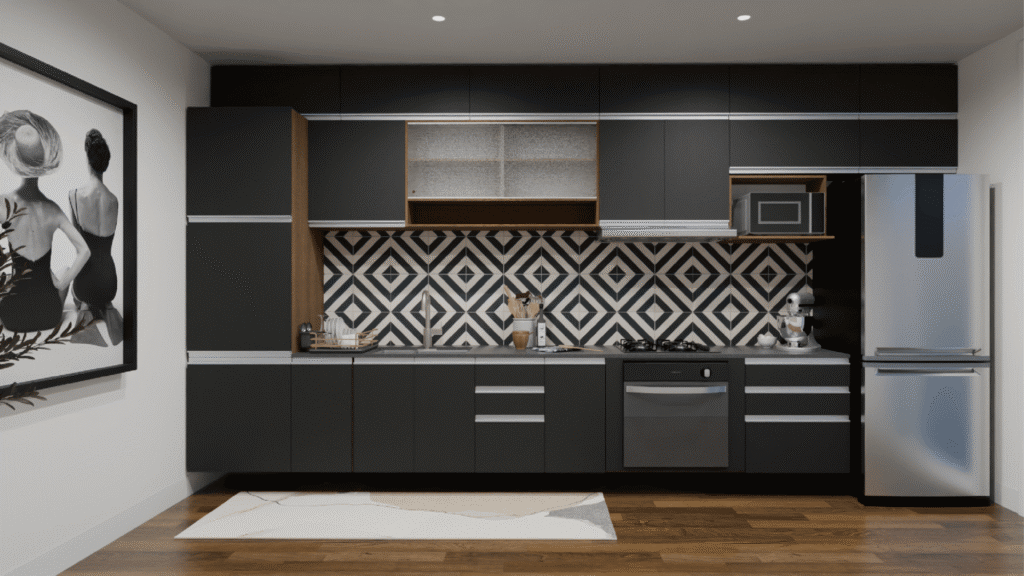
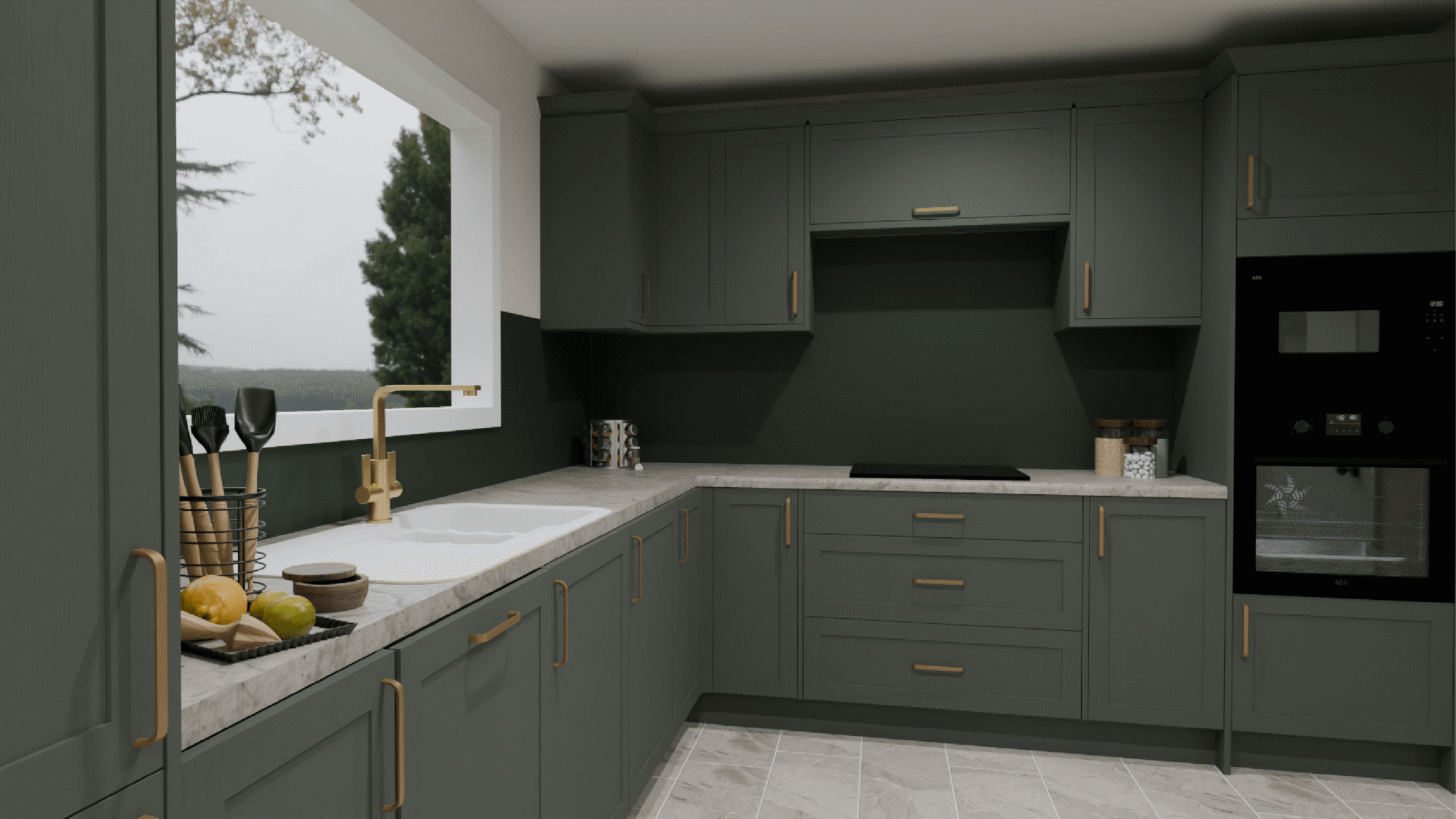
3D Cloud 3D kitchen designer app rendering
Here’s a look at retailer-specific kitchen design app features:
- High definition renders: 2K renders in seconds. 4K and 8K in minutes. That speed matters when a designer is producing multiple options during a single consultation. Many kitchen planners top out at basic screen captures or low-resolution previews that don’t hold up in a client presentation.
- Catalog swapping: Switch the manufacturer’s catalog on an existing design with one click, and cabinetry updates to the new catalog automatically. A designer can walk a customer through the same layout in three different cabinet brands in minutes. In most tools, changing catalogs means rebuilding the project from the ground up.
- Read-only sharing: Share a finished design in a read-only mode so the recipient can explore the 3D scene without accidentally changing anything. This is useful when a client needs to review at home or when another team member needs to check the design before a presentation. Most planners only offer static exports or screenshots.
- “Save product” favorites: Designers who build similar kitchens repeatedly can save a go-to cabinet configuration and reuse it across projects. They can also share those favorites with other designers on the team. Most tools treat every project as a standalone file with no way to carry configurations forward. As Gesiorski puts it: “If a designer does a lot of small kitchens in the area, they can save that configuration and keep reusing it.”
- Automated design presentation export: Renders, notes, floor plans, elevations, and a bill of materials, all pulled into one project pack in a few clicks. Designers who use traditional platforms typically assemble these documents by hand from different screens and export menus, which can be extraordinarily time-consuming.
- Analytics dashboards: Sessions, users, projects, conversion rates, and other KPIs tracked through integrated dashboards. Most kitchen planners ship with no analytics at all. For leadership, dashboards can be powerful for determining and tracking whether design tools are actually driving results for their business.
- Custom ceilings: Vaulted, angled, cathedral, etc. A kitchen planner that only supports flat ceilings produces inaccurate visuals for many real kitchens.
- 2D views: Beyond the wall drawing stage, designers can utilize flat orthographic plan and elevation view drawings to prepare designs for installers, contractors, and manufacturers.
- Automatic & manual measurements: Control measurement visibility in 2D views and capture custom measurements
- Customizable legend: Choose detail level, nomenclature, SKU, and product name display. Show or hide product names in orthographic views to control clutter.
- Custom annotations: Notes for customers or installers directly on the design.
- Custom countertop editing: Edit countertop dimensions, shape, curves, cutouts, and edge profiles.
- Product grouping and saving: Group products (e.g., island assembly), save, reuse, and share across the team.
- Advanced product styling: Toe-kick modifications, cut-downs, and catalog-specific kitchen cabinet configuration options that update dynamically per manufacturer.
- Cabinet handle quantity and orientation: Fine-tuning cabinet knob or handle placement along the cabinet door frame, including counts and rotation, allows designers to represent the details and intended function of their design.
- Custom image upload: Upload photos for custom floor or wall textures, murals, or accents. Applying custom textures can enable customers to envision their space as accurately as possible.
- Tiling patterns and grout: Tile layouts, patterns, grout color, and width on any surface.
- Wet zones in bathrooms: Place wet zones to meet safety requirements
- Quick-select navigation views: Use shortcuts to jump between elevations, 2D, 3D, and the product list.
- Quick align: Snap objects to the selected plane (Example: Align to the center of another product).
- Lasso tool: Selecting multiple products using different methods (product select, legend select) in the scene to allow for editing at scale.
- Render style options: Switch between wireframe, white fill, color fill, and photorealistic render styles in real time. Each style has a purpose for the designer’s use.
- High-def room render preview: Preview renders before processing.
- Sun position and time-of-day lighting: Correctly representing lighting at various times of day, or manually adjusting it, is essential for pro kitchen designers.
- Post-process image editing: The ability to adjust brightness, contrast, and other post-process values after rendering can avoid re-render time and enable quick revisions.
- 360 panoramas: Exploring the finished design in a browser or a VR headset can help customers imagine designs coming to life in a richer and more immersive way.
- Edit bill of materials: Edit quantities and add off-scene products to the BOM.
- Custom BOM features: Develop custom BOM features.

Jeff Dollard, Strategic Director at 3D Cloud
”We work directly with the manufacturer to make sure the quote that we’re producing can actually flow all the way through a retailer’s order systems and back to the manufacturer to make sure that purchase order is acceptable to them and is accurate.”
– Jeff Dollard, Strategic Director at 3D Cloud
How to choose the right kitchen planner app for your company
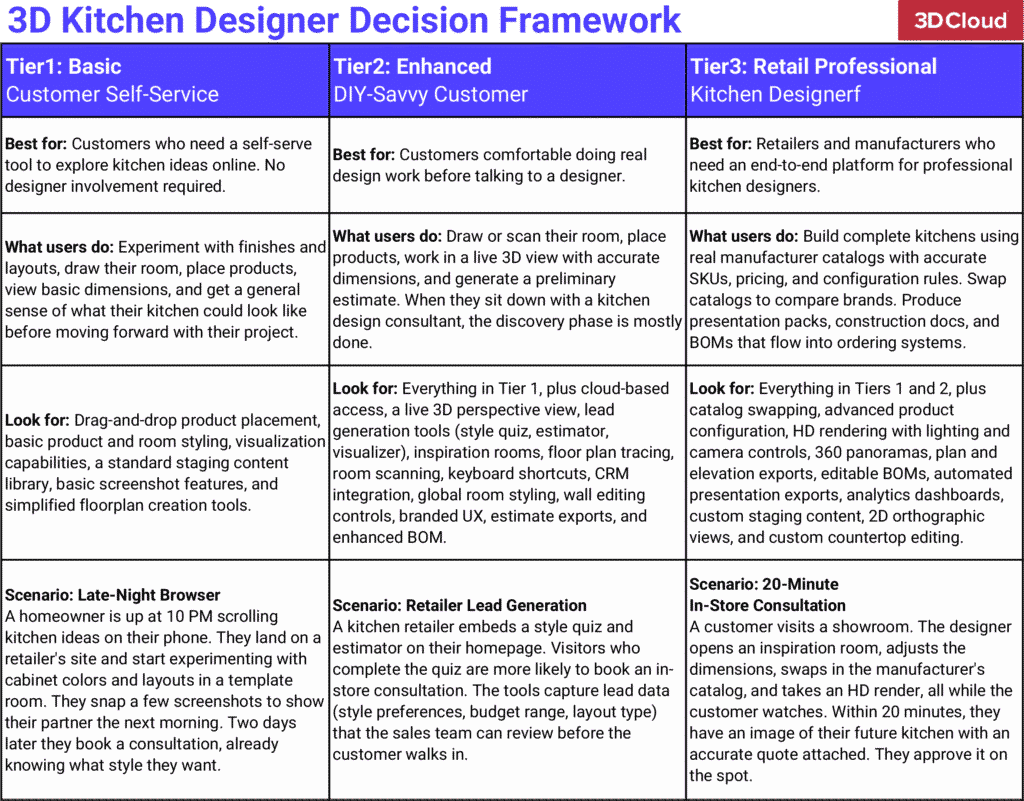
The right kitchen planner depends on who is using it and what you need it to do. Most platforms fall into one of three tiers. Proceed by identifying which tier matches your business, then evaluate the tools within it.
Tier 1 (Basic): Customer-facing kitchen planner
Best suited for customers who want to explore kitchen ideas online without involving a designer. They can browse styles, test finishes and layouts, and get a general sense of what their kitchen could look like.
Think of the homeowner browsing at 10 p.m., testing cabinet colors on their phone before they’ve ever set foot in a showroom. The goal is engagement, not a buildable design.
Look for: Drag-and-drop product placement, basic product and room styling, visualization capabilities, a standard staging library, standard screenshot features, and floorplan creation tools.
Tier 2 (Enhanced): DIY-savvy customer-facing kitchen planner
Built for customers who are comfortable doing real design work before ever talking to a designer. They draw or scan their room, place real products, work with accurate dimensions, and generate a preliminary estimate. When they sit down with a consultant, the discovery is mostly complete.
This is the customer who arrives with a floor plan already drawn to scale, finishes selected, and a maximum budget in hand.
Look for: Everything in Tier 1, plus cloud-based access, a live 3D perspective view, lead generation tools (style quizzes, estimators, visualizers), inspiration rooms, floor plan tracing, room scanning, keyboard shortcuts, CRM integration, global room styling, wall editing controls, a bill of materials, branded UX, estimate exports, and custom BOM options so nothing gets lost at handoff.
Tier 3 (Advanced): Retail-specific professional kitchen designer
Where Tiers 1 and 2 focus on the customer experience, Tier 3 is about the designer’s full workflow. Designers build complete kitchens using real manufacturer catalogs with accurate SKUs, pricing, and configuration rules. They swap catalogs to compare brands without rebuilding. They produce presentation packs, construction documents, and bills of materials that flow into ordering systems. Leadership tracks performance through analytics dashboards.
For an example of Tier 3 in practice, see this 3D Cloud Kitchen Planner Case Study.
Look for: Everything in Tiers 1 and 2, plus catalog swapping, advanced product configuration, HD rendering with lighting and camera controls, 360 panoramas, plan and elevation exports, editable BOMs, automated presentation exports, analytics dashboards, custom staging content, 2D orthographic views, and custom countertop editing.
Get our 3D kitchen planner feature framework and checklist
Use these tools in tandem to determine which kitchen planner tier you need, and then which features you’ll want. The feature framework outlines the three tiers of design tools, and provides examples to pick the right tier for your needs, while the checklist includes the list of essential features for each tier.
Download our 3D Kitchen Designer Decision Framework Template
Excel and PDF
Download our 3D Kitchen Designer App Feature Checklist
Excel and PDF
JJ Van Oosten, Kingfisher’s Chief Digital and Technology Officer, shared the following comment about 3D Cloud (formerly Marxent) in a 2022 Press Release.
“We chose 3D Cloud by Marxent because they have the tech, team, and experience to implement 3D experiences at enterprise scale. The 3D room planner tool in stores combines leading-edge visualisation and configuration technology and provides customers with a seamless and personalised shopping experience. In partnering with Marxent, it has enabled us to focus on our mobile first approach, with tools to allow our customers to design from pictures and room scanning. 3D technology is just one of the initiatives we have launched to ensure Kingfisher is at the forefront of innovation in retail.”
Examples of kitchen designer apps
These are two live examples of 3D kitchen planning tools built for real retailers. Each one serves a different market and customer base, but they both show how the features covered in this article come together in practice. Try them out to explore their features firsthand.
Lowe’s Kitchen Design Hub
Lowe’s offers a suite of customer-facing kitchen planning tools through a central online hub. Homeowners can take a style quiz to generate a mood board, use the Estimator to determine their budget based on layout and finish preferences, or jump into the visualizer to explore different combinations of cabinet styles, countertops, and hardware on a pre-built kitchen scene.
Customers can explore any or all of these lead generation tools, then schedule a free designer consultation from the same hub page when they’re ready to move forward with their project.
Want to learn more? Explore the Lowe’s Kitchen Design Hub, or check it out in the video below.
Kingfisher’s B&Q Kitchen Planner
Kingfisher’s B&Q kitchen planner allows customers to draw a custom room layout, drop in products, and customize selections across cabinets, worktops, appliances, and accessories.
The tool works for both customer self-serve use and in-store design sessions. Customers can save their project and book a free planning appointment with a design colleague, who builds out a full 3D design in the pro version of the same 3D kitchen planning tool. The pro kitchen planner has an expanded set of features so designers can finalize the designs, assemble presentations, and prepare for ordering.
Explore the B&Q customer-facing kitchen planner or watch the video below to learn more.
How 3D Cloud streamlines 3D kitchen designer apps for retailers
3D Cloud 3D kitchen designer app rendering
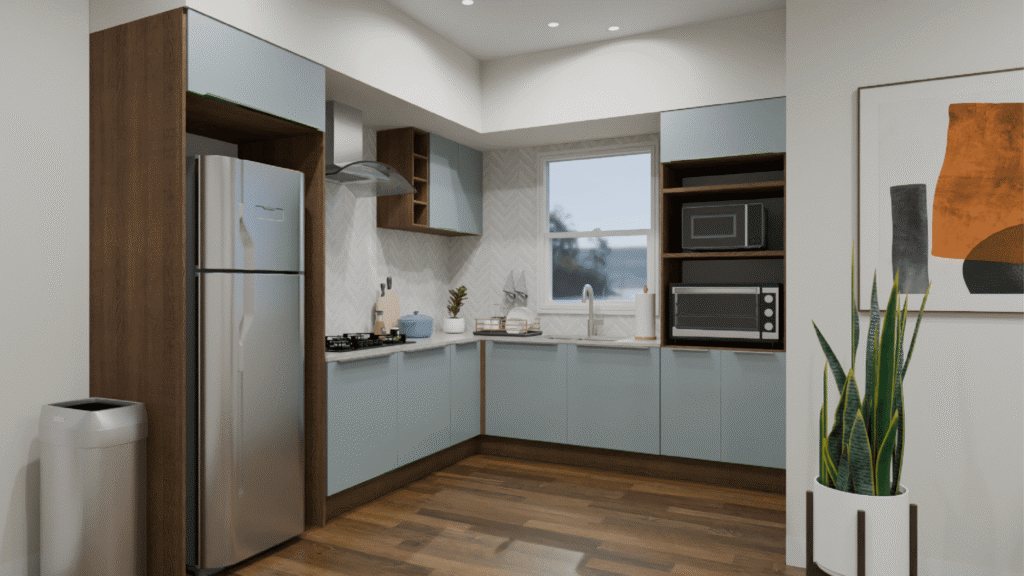
The features and framework above show what to look for across all three tiers. 3D Cloud Kitchen Designer covers all of them, whether the goal is to give homeowners an easy way to explore ideas, equip DIY customers to do real design work, or power professional designers through a full project workflow.
The 3D Cloud Kitchen Designer provides:
- Support for self-serve customers, DIY planners, and pro designers on one platform
- Consultation to completed design in less than 30 minutes
- Real-time 3D rendering with photorealistic product textures
- Cloud-based and accessible from any device, no installation needed
- Multi-format exports for contractors, installers, and client presentations
For customers:
Homeowners can browse inspiration rooms, try out layouts and finishes, build a floor plan, and see what their kitchen will look like before talking to anyone. Style quizzes, estimators, and visualizers sit alongside the planner, giving customers a way to narrow down their preferences and build confidence on their own schedule.
For DIY-savvy customers:
Customers who want to go further can trace or scan their room, work in a live 3D view, place real products, and explore finish selections on their own. When they eventually sit down with a designer, most of the discovery is already done.
For retail pros & designers:
Designers build complete kitchens using real manufacturer catalogs with accurate SKUs, pricing, and unique product configurations. They swap catalogs to quickly compare brands, create presentations and construction documents, and deliver bills of materials that flow directly into ordering systems. Leadership tracks performance through custom-built analytics dashboards.
As Tempel (Product Owner for 3D Cloud) puts it: “We adapt to your technology stack rather than forcing you to adapt to ours.”
Outcomes & Results
| Metric | Result |
| Average consultation time | 15-20 minutes |
| Design creation time | 5-10 minutes |
| Kitchen designs created | 50,000+ |
| Client approval rate (first presentation) | 95% |
| Design process speed vs. traditional CAD tools | 3x faster |
| Reduction in design revision cycles | 40% |
3D Cloud Kitchen Designer brings together consultation workflows, real appliance catalogs, material libraries, and live pricing to produce designs that are accurate, buildable, and ready for ordering.
Ready to see it in action? Contact us for a personalized demo.